Network Cell Info & Wifi
M2Catalyst, LLC.Tools
4.11.72K Reviews
- Version
- 7.4.3
- Installs
- 100.00K
- Age Rating
- Everyone
Screenshots
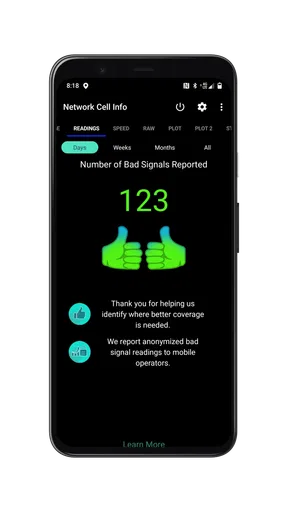
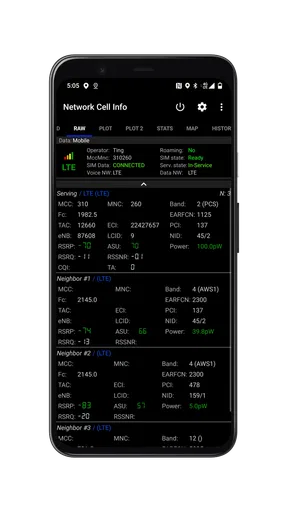
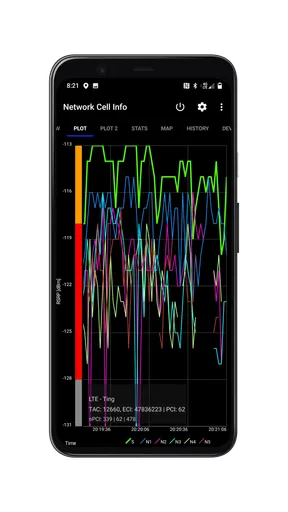
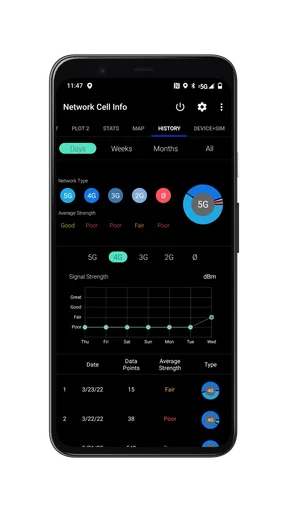
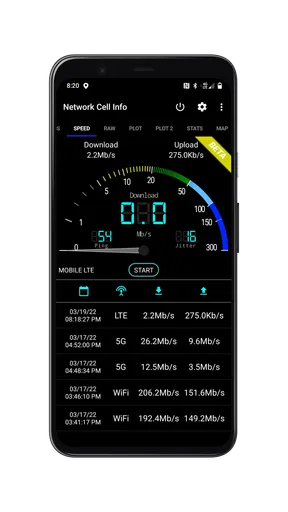
Our Review of Network Cell Info & Wifi
 Analysis by Appyee
I find network problems frustrating when the usual advice is simply to move closer to the router or try again later. Network Cell Info & Wifi is aimed at people who want more than a vague signal icon: it brings cellular and Wi-Fi details into one Android tool, so I can look for patterns instead of guessing. That extra detail is useful, but it also means the app is best approached as a diagnostic aid, not a magic fix for a weak connection.
It is a paid Tools app from M2Catalyst, LLC., priced at $1.99, with in-app purchases listed at $2.99 per item. It has a 4.2 average from around 12,000 ratings, and more than 100,000 installs. The current release is 7.3.2; the app first appeared on September 3, 2015, and is rated for Everyone. Those details make it easier to judge the commitment: this is a specialist utility rather than a free, casual speed-checker.
What I would use it for
The main reason I would keep this app around is to compare conditions across places and times. A signal reading is more meaningful when I check it in the room where calls drop, then compare it with the hallway or a spot near a window. The app cannot repair coverage, but its cellular information and map can help me distinguish a local dead zone from a broader carrier problem. That is a more practical use than opening it once, staring at numbers, and expecting an instant answer.
It is also handy when choosing where to put a Wi-Fi-connected device or where to work at home. I can check signal strength in a few candidate spots rather than relying on a single speed test. One useful habit is to take readings under similar conditions: same place, roughly the same time, and no large downloads running. That makes comparisons less misleading. A speed result can fluctuate with traffic and server conditions, while signal readings are better treated as clues about the radio link, not a promise of a particular browsing experience.
Reading the screens without getting lost
The interface feels more like a compact instrument panel than a polished consumer dashboard. That suits people who like seeing technical detail, but it can make the first session feel dense. I would start with one question—such as whether the cellular signal changes between two rooms—and ignore unfamiliar fields until they become relevant. Looking at every metric at once is a quick way to turn a useful tool into noise.
For a less experienced user, the learning curve matters as much as the feature list. Network terms do not always explain themselves, and a strong number in one field does not necessarily mean every part of the connection is healthy. I would use the help material as a starting point, then focus on repeated observations rather than trying to diagnose a carrier or router from one screen. The app is most helpful when it supports a simple comparison, not when it is treated as a technical verdict.
Accessibility in everyday use
Because the app presents a lot of information at once, readability and navigation are central to whether it feels manageable. The dashboard offers a direct route to cellular and Wi-Fi data, but the density of technical readings can take extra effort to scan. I would not recommend it to someone who wants a very simple, plain-language status screen with only a green or red signal indicator. For a curious user who is comfortable exploring menus and learning terminology, the detail is the point.
Motor and sensory needs can change how comfortable that exploration feels. A person who prefers large, uncluttered controls may find a data-heavy interface tiring, especially during a quick check on the move. I would use it while seated when comparing several readings, rather than trying to interpret small details while walking or in a distracting environment. If visual information is difficult to scan, a basic connection indicator or the phone’s built-in network settings may be a more accessible first stop.
Where it fits among network tools
Compared with the usual alternatives, this app is more useful for examining cellular and Wi-Fi conditions together than a simple speed-test utility. A speed test answers a narrow question about performance at that moment; the signal and network views can offer context about what the phone is connected to. Conversely, if all I need is a quick download-speed check, a dedicated speed test is likely faster to understand and less demanding to navigate.
Built-in Android settings are another sensible alternative. They are often enough for checking whether Wi-Fi is connected or selecting a network, and they avoid adding a separate diagnostic app. I would choose Network Cell Info when I want to investigate a pattern—such as cellular reception changing by location—or compare Wi-Fi signal in different parts of a home. I would stay with system settings for routine connection changes, and use a router’s own tools when the question is about configuring the router rather than observing what the phone receives.
One practical trade-off is that measurement does not equal control. Seeing a weak cellular reading does not give the app the power to improve a carrier’s coverage, and finding a busy-looking Wi-Fi channel does not automatically reconfigure a router. I would treat the information as evidence for a next step: move the phone, compare another location, or check the router separately. That boundary keeps the app useful without expecting it to solve problems outside its reach.
A realistic troubleshooting routine
Imagine I keep losing a video call in one corner of my home. I would first check the phone’s Wi-Fi reading in that spot, then repeat the check closer to the router and in another room. If the signal improves noticeably near the router, placement or local obstruction becomes a reasonable thing to investigate. If Wi-Fi looks steady but the call still struggles, a speed test can add a separate piece of evidence. I would avoid drawing conclusions from a single result, particularly while other devices are using the connection.
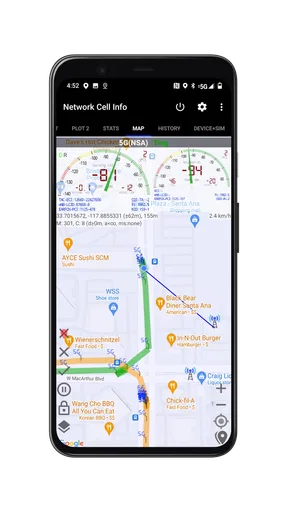
For a cellular issue outdoors, I would compare the network information and signal in the problem location with a nearby spot where service is better. The map can make the surrounding cell environment easier to think about, but I would not assume that a displayed tower position explains every reception problem. Buildings, terrain, network load, and the phone’s position can all complicate what a reading means. The best takeaway is often a repeatable pattern, not a definitive explanation.
When the detail is worth the effort
I think the app suits people who troubleshoot home connectivity, travel through areas with inconsistent reception, or simply want to understand what their phone is using. It can also help someone document a recurring issue before contacting a carrier or asking a household member to move a router. Keeping notes about place and time alongside readings is a useful extra step: a small set of comparable observations can be more persuasive than a screenshot captured during one bad moment.
It is less suitable for someone who only wants the fastest possible answer to “Is my internet slow?” It may also frustrate people who dislike technical labels or expect a diagnostic app to automatically improve reception. In those cases, a basic speed-test tool, Android’s own connection settings, or the router’s management options may be a better fit. The choice depends on whether the goal is quick convenience or a fuller picture of the phone’s network environment.
There is also a situational-access question: this kind of tool is most useful when I can pause and inspect the screen. In a noisy street, a crowded station, or a moment when attention needs to stay on the surroundings, detailed readings are not worth studying. I would wait until I am somewhere safe and still, then compare locations. That simple habit makes the app easier to use and reduces the chance of mistaking a rushed glance for a reliable diagnosis.
First Impressions Matter
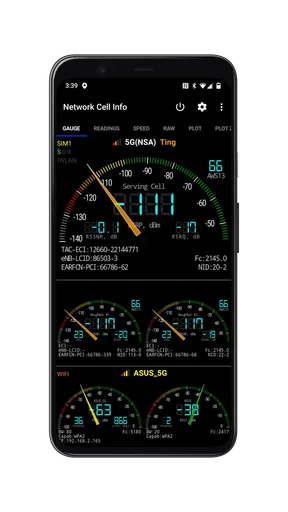
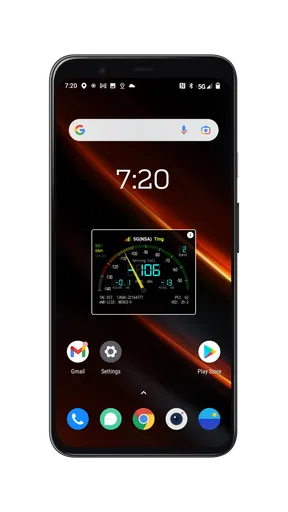
When I first downloaded Network Cell Info & Wifi, I was greeted with a pretty straightforward interface. It's not the slickest design out there, but it's functional and gets the job done. The main dashboard is like a cockpit for your phone's connectivity, showing real-time data for both cellular and Wi-Fi networks. If you’re a data geek or just curious about what's going on behind the scenes, this app is a treasure trove.
Diving into Features
The app has a bunch of features to explore, and I quickly found myself lost in all the data. The Signal Meter is probably the star of the show. It provides detailed signal strength readings, which is super handy if you’re troubleshooting connection issues or trying to find the best spot in your house for strong Wi-Fi.
There's also a Map feature that lets you see your current cell tower location and nearby towers. This is where the app shines if you’re trying to figure out why your signal is weaker in certain areas. The map gives you a visual representation of your cellular network environment, which is both fascinating and useful.
For those who love numbers, the Cell Network Information section offers comprehensive data about your current connection, including the type of network, operator, and detailed signal stats. It's like having your own personal network analyst in your pocket.
Wi-Fi Analysis
Beyond cellular networks, Network Cell Info & Wifi also provides insights into your Wi-Fi connections. The app can scan available networks, showing signal strength, channel number, and encryption type. It’s particularly useful for diagnosing Wi-Fi issues or optimizing your home network by finding the least crowded channel.
The app also includes a Network Speed Test feature. Who doesn’t love testing their internet speed and then bragging about it? It’s simple to use and provides quick results, which I found to be pretty accurate compared to other speed test apps.
The Learning Curve
While the app is packed with features, it might feel a bit overwhelming at first. If you’re not familiar with network jargon, some of the data might look like gibberish. But don’t worry, the app does a decent job of explaining what each metric means. Plus, there’s a handy help section that can guide you through the basics.
The app is free, but there are ads. If you find them distracting, there’s an option to upgrade to a paid version to remove them. Considering the depth of information the app provides, it's a reasonable trade-off.
Final Thoughts
Overall, Network Cell Info & Wifi is a powerful tool for anyone interested in understanding and optimizing their network connections. Whether you’re a tech nerd who loves diving into data or just someone who wants to improve their signal at home, this app has something for everyone.
It’s not perfect, and the interface could use a bit of polish, but the functionality more than makes up for it. If you’re willing to spend some time learning the ropes, this app is a fantastic companion for managing your cellular and Wi-Fi networks.
So, if you're curious about what's happening under the hood of your phone's connectivity, give Network Cell Info & Wifi a try. You might just find it’s the app you didn’t know you needed.
Verdict
Strengths of Network Cell Info & Wifi
- Comprehensive signal strength details.
- Real-time cellular and Wi-Fi information.
- User-friendly interface with easy navigation.
- Supports dual SIM devices for detailed data.
- Frequent updates with new features.
Limitations of Network Cell Info & Wifi
- Ads can be intrusive for some users.
- Limited functionality in the free version.
- Data accuracy may vary by location.
- Some features require technical knowledge.
- Battery consumption can be high.
Similar Picks in This Category
View All
Google LLC4.0

Gboard - the Google Keyboard
Google LLC4.5

Google Play services
Google LLC4.3

Google Play Store
Google LLC4.9

Files by Google
Google LLC4.5

SHAREit: Transfer, Share Files
Smart Media4U Technology Pte.Ltd.4.3
Frequently Asked Questions
What is Network Cell Info & Wifi used for?
Network Cell Info & Wifi is a comprehensive tool designed for network diagnostics and monitoring. It provides detailed information on cellular and WiFi networks, including signal strength, network type, and coverage. Ideal for both professionals and casual users, it helps troubleshoot connectivity issues and optimize network performance.
How accurate is the signal strength measurement in Network Cell Info & Wifi?
The app utilizes data directly from your device's radio module, making signal strength measurements highly accurate. However, environmental factors and device variations can affect readings. For best results, ensure your device is updated and compare measurements across different locations and times.
Does Network Cell Info & Wifi require an internet connection to function?
While the app can display basic signal information without an internet connection, certain features, like map-based coverage and WiFi databases, require connectivity to fetch and update data. Offline use is possible for local signal monitoring, but full functionality is achieved online.
Is Network Cell Info & Wifi compatible with all Android and iOS devices?
The app is compatible with most Android devices running version 5.0 and above, and iOS devices with similar modern specifications. However, some older models might lack advanced features due to hardware limitations. Check the app store listing for specific compatibility details.
Are there any privacy concerns with using Network Cell Info & Wifi?
Network Cell Info & Wifi prioritizes user privacy. While it accesses network data to provide accurate information, it does not store or share personal data without consent. Always review the app's privacy policy and permissions to ensure your data is handled safely.
